
Adding BP Premier via Halo Connect
1. Configure BP Premier to provide access to VoiceBox
1.1. Open BP Premier on your BP server computer, In Top menu, click Setup=>Configuration
1.2. Navigate to Database, Click "Setup third party integrations"
1.3. Search for "Avant (via Halo Connect)", check the checkbox next to it and click save
1.4 You will see a window with Site Id and Pairing Code.
- Note: Do not close the window. If do, save Site Id and Pairing Code. You need these values in next step.
2. Configure VoiceBox
2.1. Open VoiceBox web app as account admin
2.2. Click on settings from the left-hand menu, then select "Best Practice + Halo" under EMR Integration on the dashboard.
2.3 Initiate Pairing
- If it is the Initial setup click the "Pair" button
- Enter the site ID and pairing code
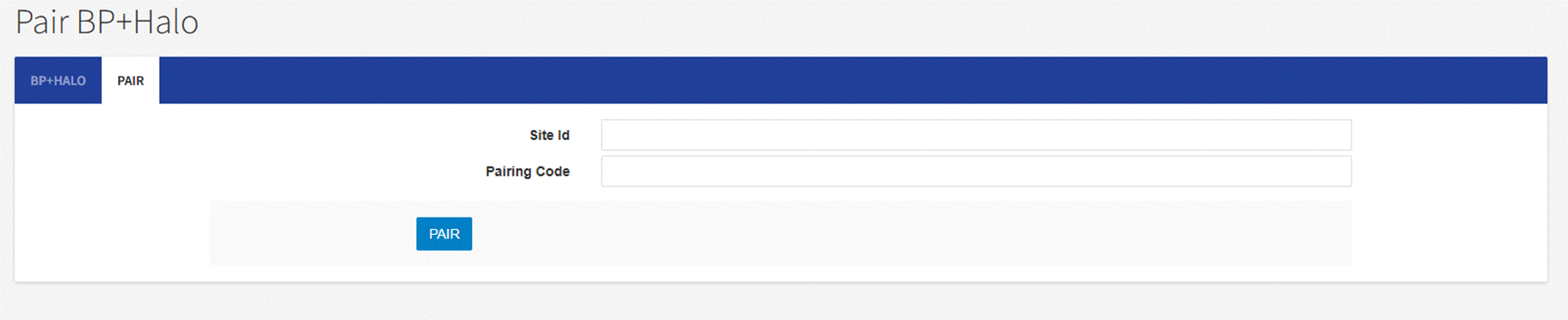
- This will show pair
3. Map Doctors
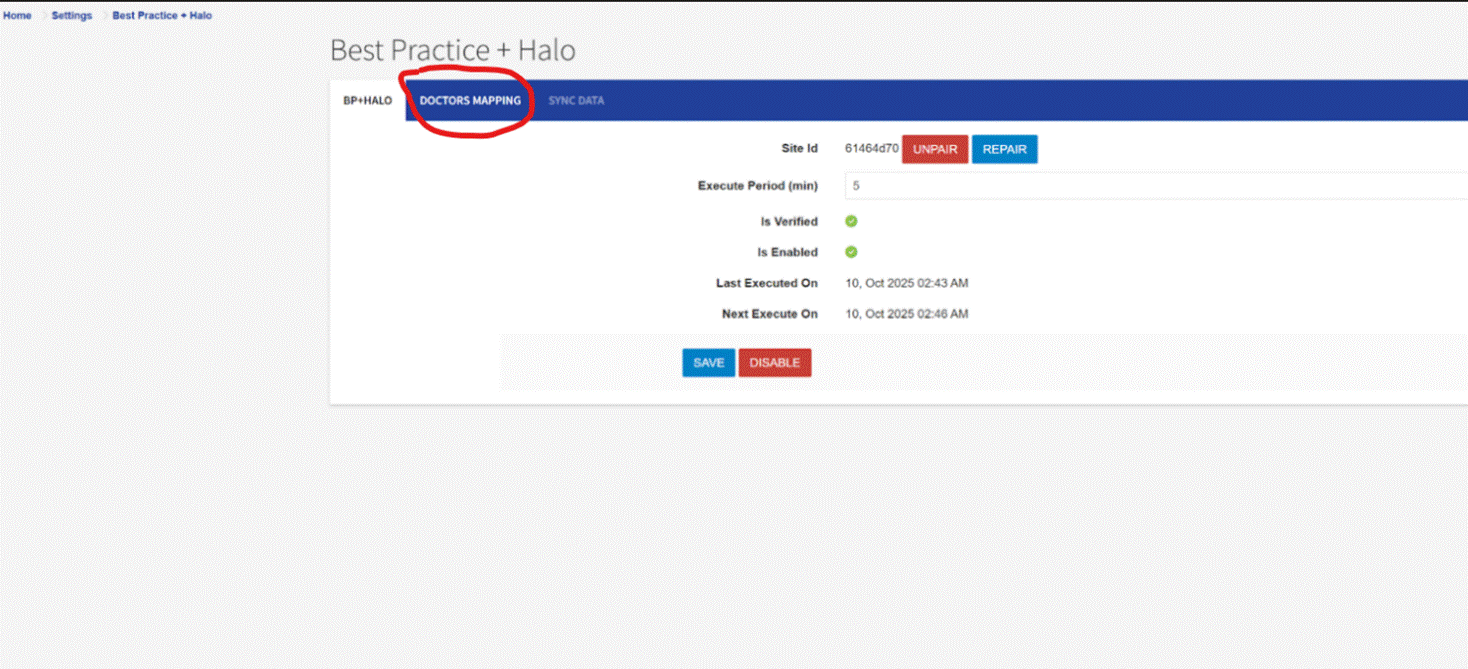
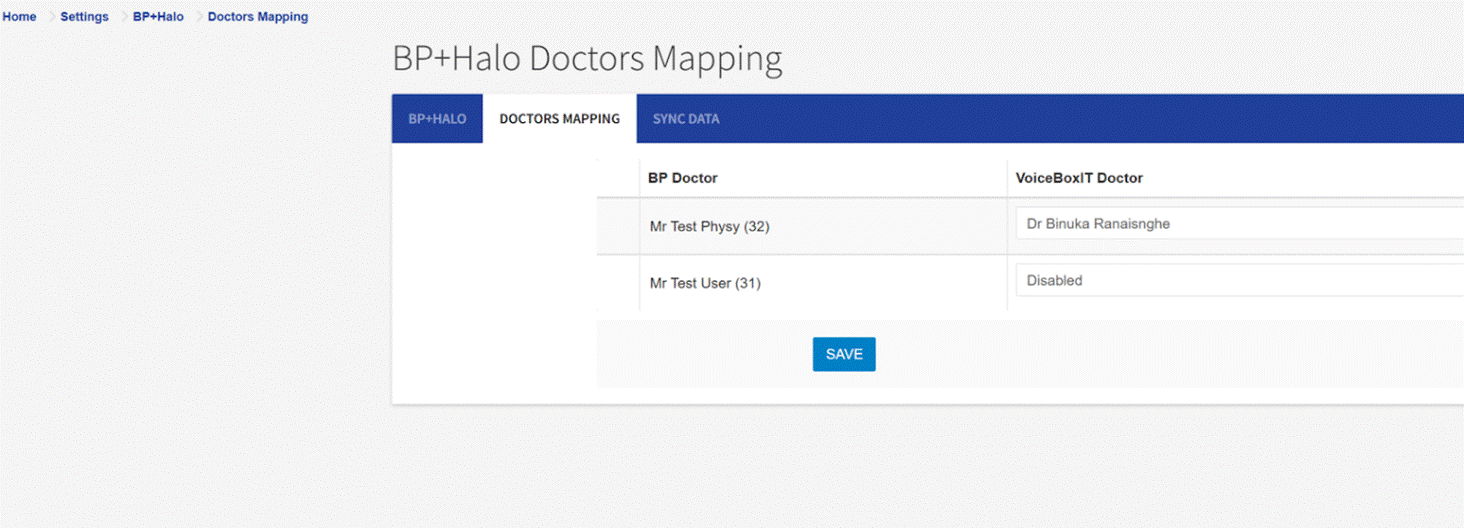
- Click on the Doctors mapping tab in VoiceBox BP settings
- Map the doctors in VoiceBox to the Doctors in BP.
- NOTE: only mapped doctors' details will be sync
4. Verify Sync information available in VoiceBox
4.1 Open Sync Data view (next to "Doctor Mapping" button)
Note: Make sure patients are available for selected doctor(s). Else create dummy patient for today.