
Best Practice Middleware Set up and Doctor Mapping
Set up of voicebox middleware is a 3 step process.
- Authentication and establishing a connection to a Voicebox tenant account
- Setup connection to practice management software and Voicebox middleware
- Mapping of practice management doctors to Voicebox doctors
To start this process you will need access to the BP database computer
Setup connection to practice management software and Voicebox middleware
Log into the VoiceBox tenant account on the BP server computer.
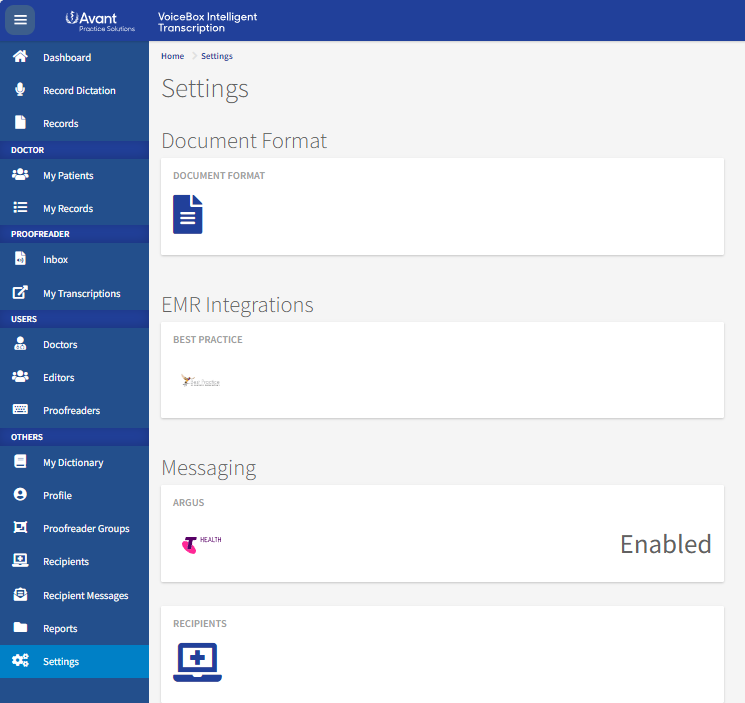
Click on settings from the left hand menu, then select Best practice under EMR Integration on the dashboard.
Click on Download VoiceBox Middleware
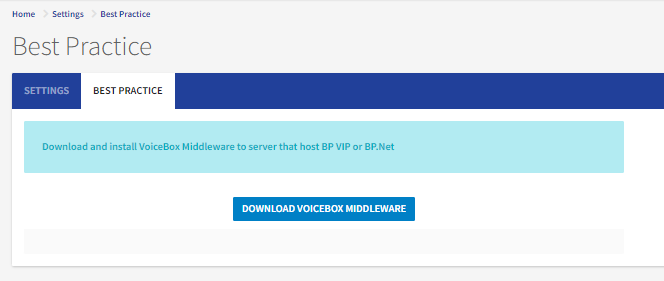
Run the downloaded file and install the middleware onto the server computer.
Once a token is set, based on practice software, the setting must be set and validated.
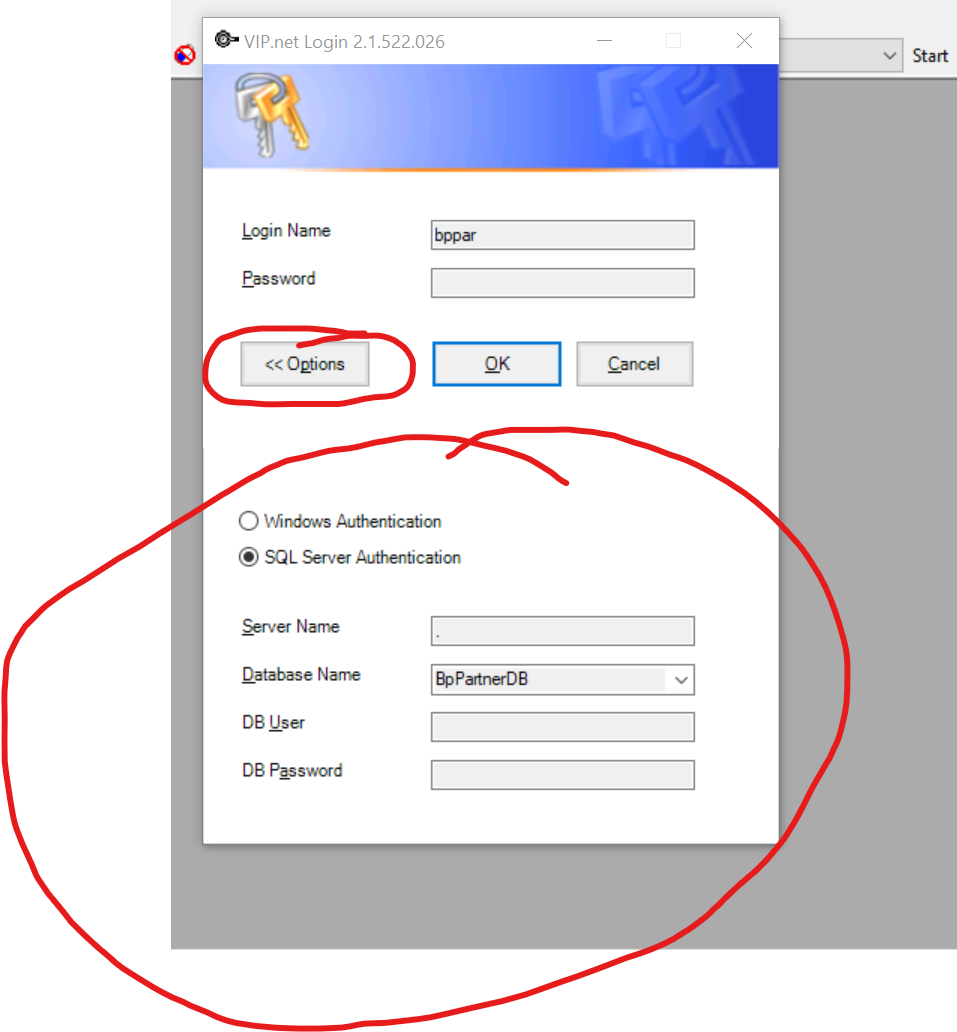
BP VIP.net
- Open the middleware on the server computer.
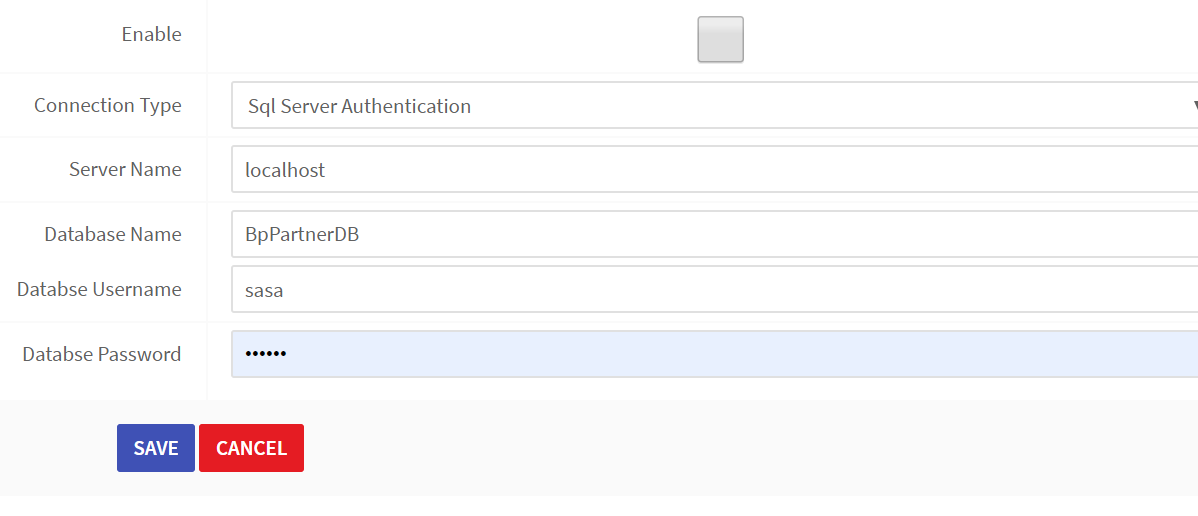
- Specify server details (sample details in the option field of VIP login). Open the middleware and then input the server details.
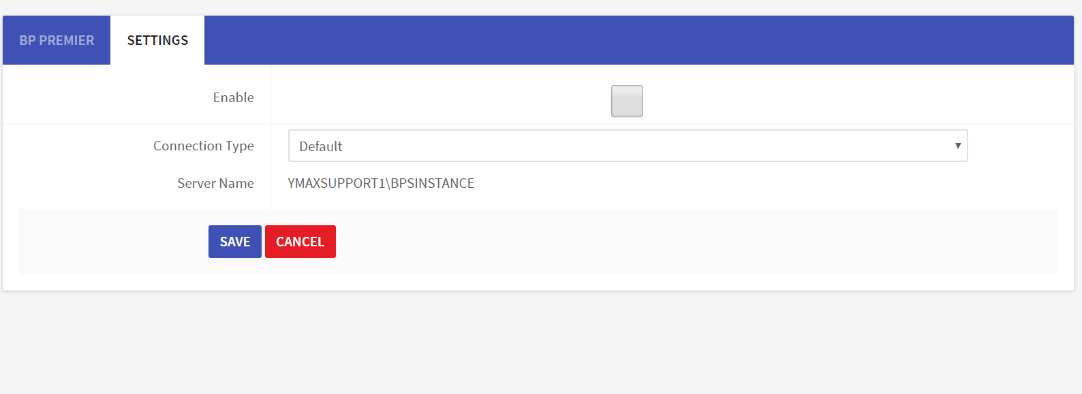
Mapping of practice management doctors to voicebox doctors
- Once settings verified and enabled you can then map the doctors in VoiceBox to the Doctors in BP.
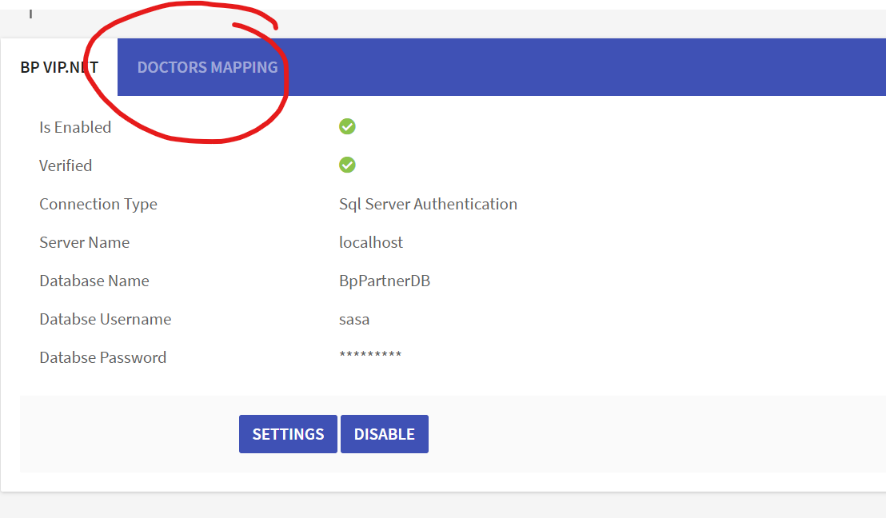
- In the middleware, click on the doctors mapping tab in VoiceBox BP settings.
- This will display the BP doctors available and then you can select the matching VoiceBox doctor.
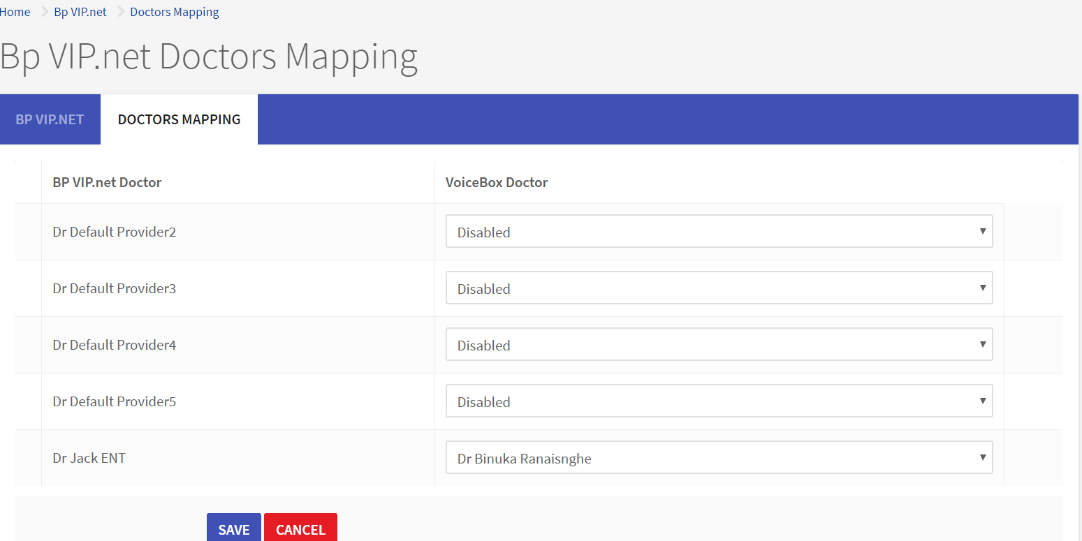
- NOTE: only mapped doctors details will be sync
Syncing
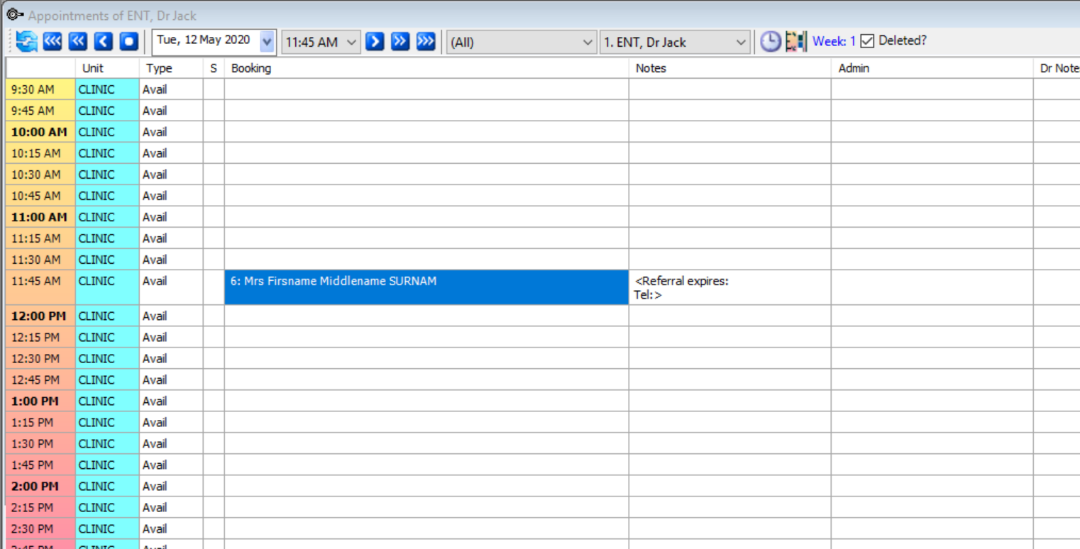
Your Best Practice appointment book will then be synced with VoiceBox and can be seen on the Dashboard.
Bp vip
Voicebox middleware
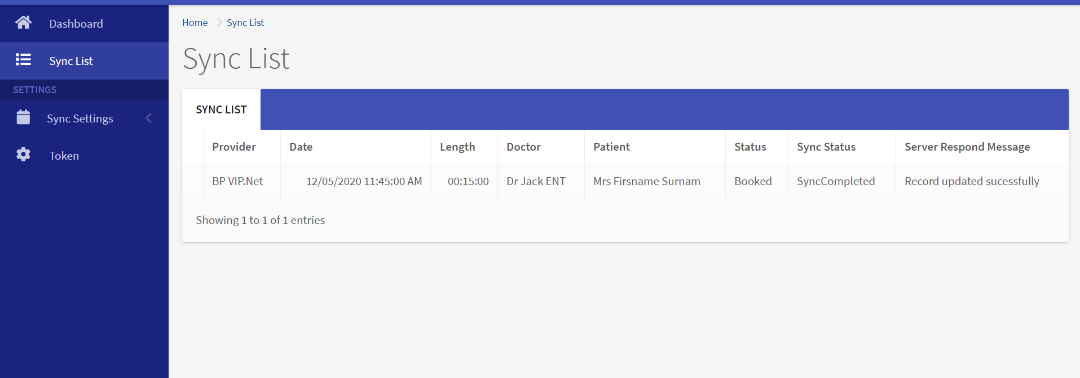
Tenant account of Voiceboxit.com.au
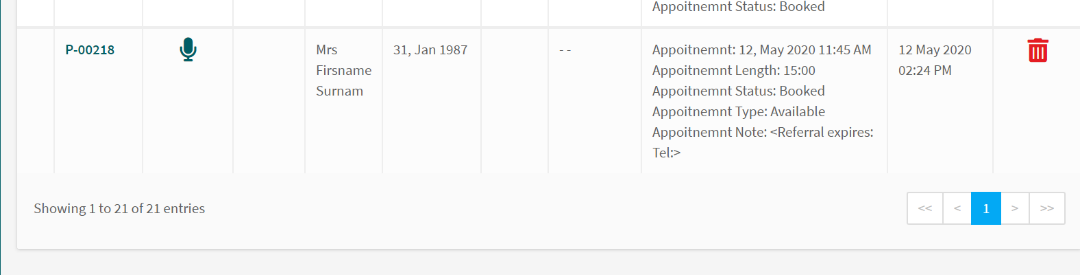
- Data is synced every 5 minutes, so if appointments are changed/added/cancelled then they will update in VoiceBox.